
Connect an external assistant with MCP
Find your local connection settings, connect a compatible client, and verify a project-scoped search.
On this page
MCP lets a compatible external AI client request information and actions from your running ShotAI application. Start with a read-only library check, then a small search inside a named collection. You do not need MCP for the ordinary desktop search workflow.
Before connecting
Open ShotAI on the same computer as your client, sign in, and import and understand your footage. Keep ShotAI open while connected. A connected client needs to support the local SSE transport and an Authorization header; a client that accepts only remote HTTPS services cannot use this local address directly.
The configuration below describes ShotAI's connection information. Client-specific configuration files and supported transports differ. Use your client's current MCP instructions; naming a client in the settings is not a compatibility guarantee for every version.
Find the connection information
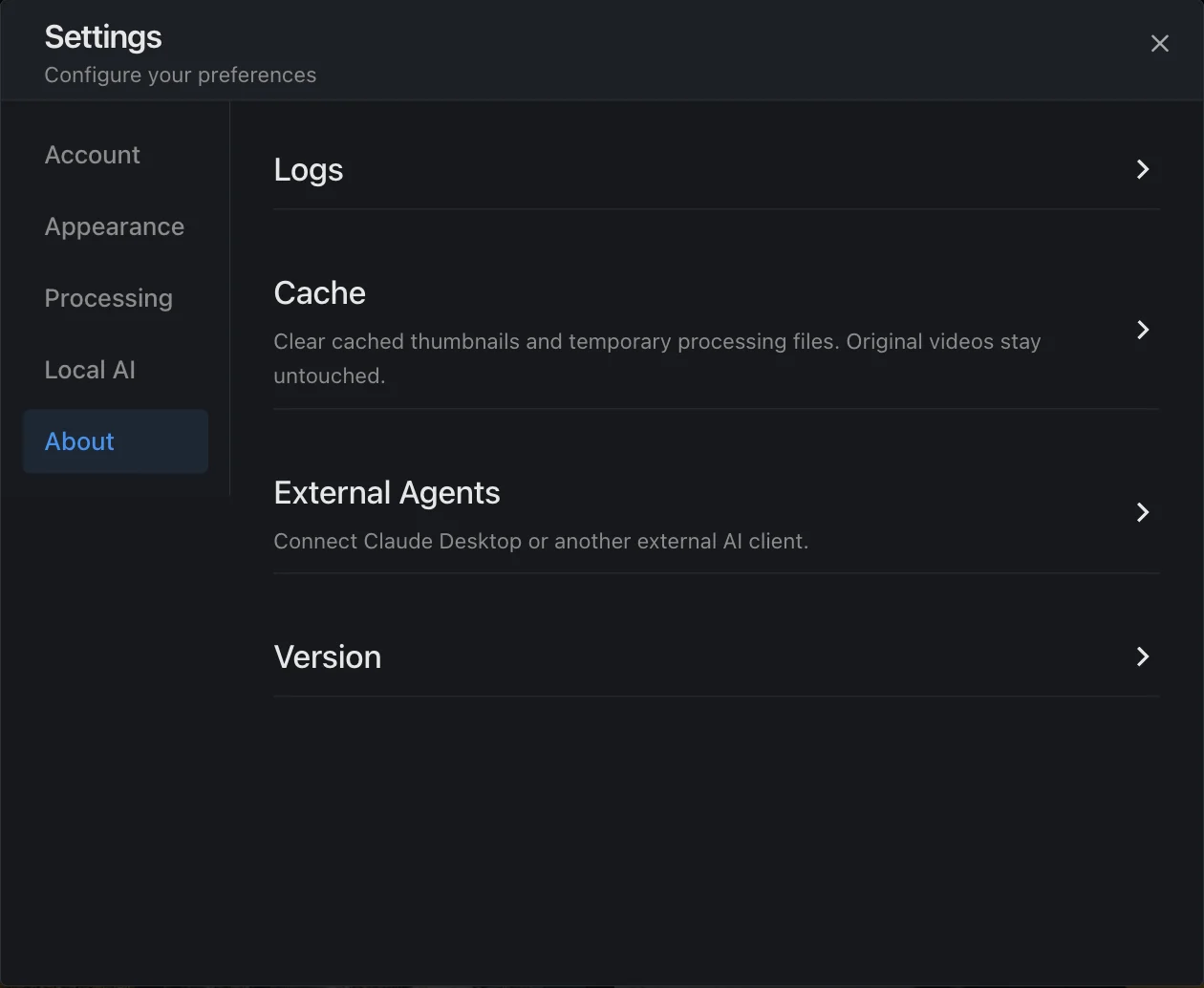
- Open Settings → About → External Agents.
- Enable MCP Server if it is off. Check that the interface reports the server as running.
- Read the endpoint and connection details shown by your installed version. Use Copy MCP configuration or copy the individual fields into your client's MCP setup.
- Keep the Auth Token private. It authorizes access to local ShotAI tools; do not include the real value in shared instructions, screenshots, or a repository.
The following example contains a placeholder, not a working token:
{
  "mcpServers": {
    "shotai": {
      "url": "http://127.0.0.1:23817/sse",
      "transport": "sse",
      "headers": {
        "Authorization": "Bearer YOUR_SHOTAI_AUTH_TOKEN"
      }
    }
  }
}
Use the values displayed by your own application. This JSON structure matches ShotAI's example; some clients require a different configuration structure. The address refers to your own computer and is not a hosted ShotAI API.
Verify a small, read-only task
First ask the client to list collections or report library statistics. A successful connection should return actual ShotAI data. If it cannot discover or call tools, resolve the connection before asking for an editing workflow.
Then substitute the name of one of your own collections in this request:
Confirm the collection named “Autumn campaign.” Search only that collection for someone writing in a notebook. Return up to three candidates with their source video and start and end times. Check that every candidate belongs to that collection. If the collection is missing or ambiguous, stop and explain. Do not modify or export media.
Open the candidates in ShotAI and check the visible action. A returned score or an assistant's summary is not confirmation that all requirements are met. Collection scope is a search constraint, not an access-control boundary.
Connection problems
In the verified 1.2.0 connection, one SSE client at a time was supported. Close another connected client before reconnecting. Also check that ShotAI remains open, its server is running, and the client can send the required header. An authentication error, an unsupported transport, and footage that has not been understood are different problems.
If your client rejects the configuration, send its name, version and sanitized error to support. Do not expose the local service to the public internet as a workaround. External clients may process returned metadata under their own policies; see Privacy and connectivity.
Need a hand?
Include your version, the steps you tried, and a screenshot with private details removed.