
How to Match Footage to a Script: Search, Verify, and Record Gaps
Match existing footage to each script sentence. Separate facts from mood, check source ranges, and keep a candidate table with clear reasons and gaps.
To match footage to a script, split each sentence into facts that must be visible and mood that can be expressed more freely. Search your own collection, inspect the source, and record a candidate range with an accept, reject, or missing-footage decision. Keep gaps visible: a similar object or a high relevance score cannot prove a missing action.
The output is a usable shot list for an editor. Sentence analysis and the table below are editorial work, assisted here by AI; they are not an automatic script-to-video feature in ShotAI. For a first search, start with finding and verifying one shot. For a broader visual brief, see Find B-roll.
1. Separate Facts from Mood
Facts need visual evidence. Mood permits choices about framing, movement, pacing, or duration. A mixed sentence needs both: an attractive atmosphere cannot compensate for the wrong object or action.
These four sentences are fictional editorial exercises, not customer copy:
| ID / type | Script sentence | Must be visible | Flexible expression |
|---|---|---|---|
| S1 / fact | A closed blue spiral notebook rests on the table. | Blue color, spiral notebook, closed cover, tabletop | Framing and duration |
| S2 / mood | Let the rhythm move gently. | No specific product or business fact | Movement, composition, pacing |
| S3 / mixed | A green apple gives the picture a quiet moment. | A green apple | How stillness or calm is expressed |
| S4 / action gap | A hand opens the notebook and writes the first line. | A hand, opening the notebook, writing | The required actions cannot simply be dropped |
Make this distinction before searching. Otherwise it is easy to rewrite the requirements around whichever shot happens to appear.
2. Establish the Searchable Scope
Use only material you own or are permitted to process. Confirm the collection, source availability, and completed AI understanding before interpreting the results. Search documentation explains semantic and exact modes; privacy and connectivity explains processing boundaries.
This example uses an October 26, 2026 session in ShotAI for Mac 1.2.0. The existing collection, “Product Fit Test 2026-09-11,” contained two original synthetic videos and three searchable detected shots. There was no new import or AI-understanding run. The session's relevance threshold was 50% and was not changed; this is a recorded test setting, not a recommended default.
- fixture_01.mp4: a 12-second sequence of original illustrations: red mug at 0–4 seconds, closed blue notebook at 4–8, and green apple at 8–12.
- fixture_02.mp4: approximately 12 seconds of original motion graphics: a yellow circle and a cyan square moving over a dark grid.
The file checksums matched the original generation records. These simple drawings support a transparent workflow example; they cannot establish retrieval accuracy, speed, customer results, or performance on a professional footage library.
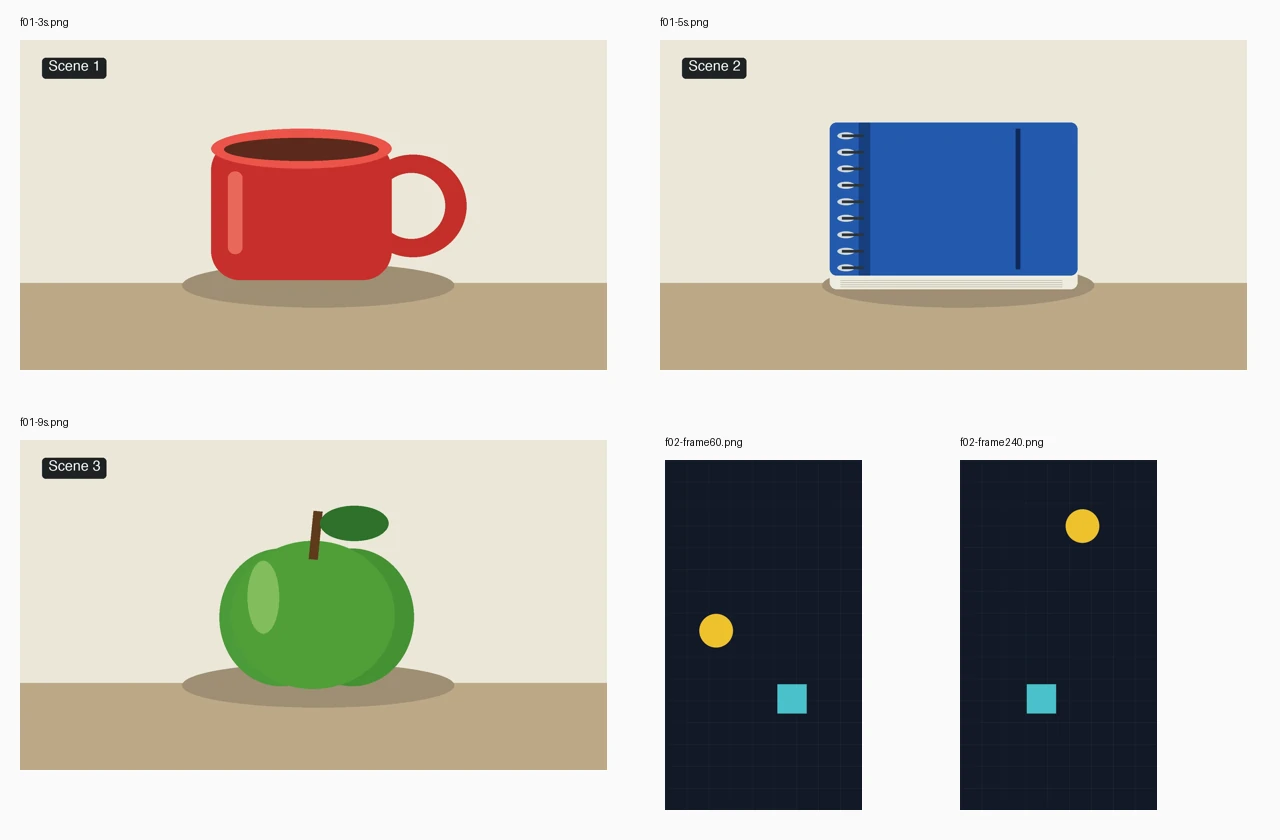
Source-frame montage, prepared October 26. The images were decoded from the original files, not captured from a continuous ShotAI playback. The motion frames are at approximately 2 and 8 seconds.
Original media remains local, but AI understanding uses derived visual and possible audio data in cloud services; semantic query text also uses online encoding. A local source file does not make the entire workflow offline.
3. Search for Visible Content and Record the Actual Mode
Start with the subject and required action. Change one condition at a time, keeping the script's hard requirements separate from query wording. A shorter query can retrieve a candidate, but it does not remove the need to verify the omitted conditions.
| ID | Query used on October 26 | Displayed mode and result |
|---|---|---|
| S1 | A closed blue spiral notebook on a beige table. | Semantic: 0 shots |
| S2 | A yellow circle and a cyan square moving on a dark background. | Semantic: 1 shot from fixture_02; displayed relevance 66% |
| S3, first attempt | A green apple on a plain tabletop. | Exact: 0 shots; after explicitly selecting semantic and rerunning: 0 shots |
| S3, shorter query | green apple | Semantic: 1 shot from fixture_01; displayed relevance 52% |
| S4 | A hand writing in an open notebook. | Planned query only; not run, so no search result is reported |
The first apple result was labeled exact matching. Its cause was not established; it must not be counted as a semantic-search failure. Record the displayed mode instead of inferring it from what was typed.
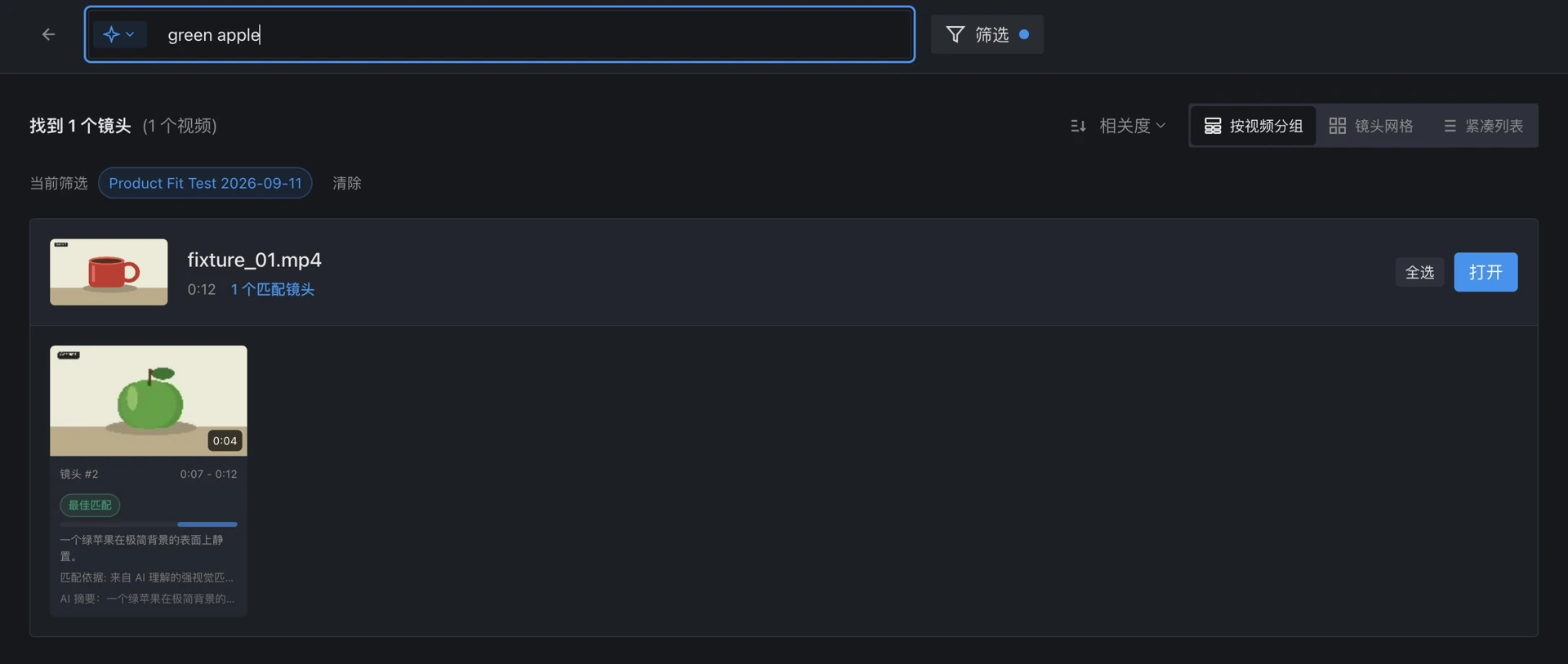
October 26 search screenshot, cropped to remove the account header. The returned shot's displayed range is 0:07–0:12; the green apple begins at 8 seconds in the source.
4. Turn Candidates into Decisions
Record the returned range and the range that actually supports the sentence separately. Shot boundaries and source events can differ. The following ranges are proposed selections for editing, not completed trims or exports.
| ID | Candidate and returned range | Source check / proposed range | Decision and reason | Next step |
|---|---|---|---|---|
| S1 | No search candidate; fixture_01 located from the known source | Decoded 5-second frame and generation records; blue notebook at 4–8 seconds | Keep a manually located source candidate. The zero result does not mean the notebook is absent. | Check 4–7.96 seconds in the editor; do not use the whole first detected shot, which also contains the red mug. |
| S2 | fixture_02, shot #1, displayed 0:00–0:12 | ShotAI player inspected at 2 and 8 seconds, plus decoded source frames; propose 2–8 seconds | Accept as a mood candidate. Both shapes move; “gentle rhythm” remains an editorial judgment. | Check pacing in context and discard the incorrect claim that the square is stationary. |
| S3 | fixture_01, shot #2, displayed 0:07–0:12 | Decoded 9-second source frame and generation records; propose 8–12 seconds | Accept the green-apple candidate. The object is verified; the quiet mood is an editorial choice. | Verify exact In/Out frames before using the range. |
| S4 | No retrieval attempt or candidate | Complete generation records and matching file checksums show no hands, opening, or writing in either source | Keep a footage gap for these two files. A closed notebook cannot demonstrate writing. | Obtain authorized footage, arrange a shoot, or explicitly revise the script with its owner. |
The 7.96-second detected boundary comes from the earlier September 11 collection record; October 26 screenshots display whole seconds. The blue notebook continues to 8 seconds in the source. Never treat a rounded result label as a frame-accurate edit decision.
The motion example also shows why summaries need checking. The generated description says the cyan square stays still, but its position differs between the two inspected moments. Keep the suitable visual candidate while rejecting that incorrect description.
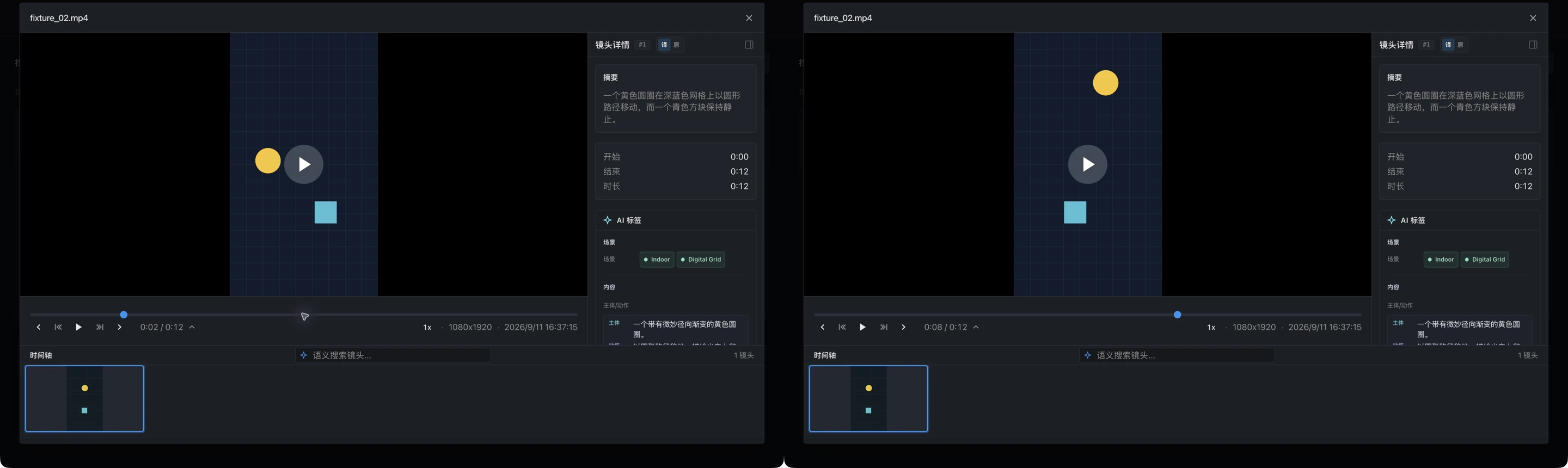
Two separate October 26 player captures, shown side by side; not a continuous recording. Account headers were removed. The generated description is evidence of what the system displayed, not a verified description of the source.
Method limitation: The capture tool and accessibility view became inconsistent during the apple-player attempt. That capture was excluded; apple verification used decoded source frames and the original generation records instead. The handwriting query was not run. Its gap is supported by the complete content-generation record for these two checksum-matched files, not by a few sampled frames or an imagined zero-result search. This is not a claim about the rest of the library.
5. Reject a Similar Candidate When a Required Fact Is Wrong
A separate check on October 20, using the same original collection at a 45% threshold, searched for “A blue coffee mug on a table.” It returned one shot from fixture_01 with displayed relevance of 47%. The source showed a red mug at 3 seconds and a blue notebook at 5 seconds.
Reject it for the blue-mug request. A cup and a blue object in the same detected shot do not establish that the cup is blue. This earlier result is a dated supplementary example, not one of the October 26 searches. Its threshold is not a general recommendation. The single-shot walkthrough contains the original comparison.
6. Hand Off a Candidate Table, Including the Gaps
Copy this row for each script sentence. Keep source identity, search settings, and reasons alongside the visual choice so another editor can check it.
| Sentence / type | Required facts / flexible mood | Query, mode, collection, setting | Returned file and range | Checked source range and method | Accept / reject / gap, reason, next step |
|---|---|---|---|---|---|
| Your actual sentence | List requirements separately from optional expression | Record the actual search, or mark not run | Record a result, no result, or no retrieval attempt | Note what was inspected and the proposed edit range | Explain the decision and what remains to do |
Follow Review and export for ShotAI's detected-shot selection and output checks. Precise trimming belongs in the destination editor. Confirm the original file, visible action, frame boundaries, and sound before treating a candidate as usable. This example did not export media or assemble a finished video.
For example, Adobe's official Source Monitor In/Out instructions describe moving to the desired frame and marking In or Out. Use the actual frames in your editor; the source intervals in this article use an end-exclusive boundary and are not an instruction to copy the same endpoint into every editor. This reference explains a general editing step, not a tested export from this example.
Try the process with one sentence and a small authorized collection. A checked candidate and an honest missing-footage note are both useful outcomes.
FAQ
Does this turn a script into a finished video automatically?
No. The sentence breakdown, candidate table, and accept/reject decisions are editorial work, assisted here by AI. ShotAI provides retrieval and source-review tools; this example does not demonstrate automatic assembly, narration, or timing alignment.
Does no result mean the footage is missing?
No. The notebook query returned nothing even though the source contained it. Check processing state, scope, search mode, and wording. Record manual source discovery separately from a search hit.
Can relevance or an AI summary verify the sentence?
No. Relevance ranks similarity; it is not the probability that every required condition is true. In this example the motion summary incorrectly described the square as stationary. Inspect the source.
What should happen when a required action is absent?
Keep the gap visible. Obtain footage with appropriate rights, arrange a shoot, or explicitly change the script. Do not silently substitute a related object for the missing action.
Sources
- ShotAI: Search your library — modes, relevance, and source verification.
- ShotAI: Privacy and connectivity — local originals and online processing boundaries.
- ShotAI: Review and export — detected-shot selections and checks in the destination editor.
- ShotAI: How to search inside your own videos — the separately dated October 20 rejection example.
- Adobe Premiere: Set In and Out points in the Source Monitor — frame-based marking in the editor; checked October 29, 2026.
Published by ShotAI. Author: Sandy, Seeknetic founder. Drafting, factual checks, and translation consistency review were AI-assisted; this does not assert a personal review by Sandy or a human product-team review. Product documentation checked October 29, 2026; the practical evidence dates above are preserved.